DynCurve
Curve-Based Dynamics Processor
Draw the way your dynamics behave. DynCurve lets you shape compression, expansion and level movement with freely editable transfer curves — precise, visual and built for modern mixing workflows.
On your phone?
Installing DynCurve works best on your studio computer. Send yourself the macOS and Windows download links by email.
- Intuitive workflow
- Separate curves for Mid and Side
- Responsive, GPU accelerated UI
- Multichannel support
- Free 14-Day Trial
I’ve been waiting for this for many years! This has to be the most versatile and useful dynamics processor. The ability to draw your own dynamics curve is insanely useful.
Read full quote
Imagine reducing the the lowest part of the signal that has the room ambience and noise, lift the middle part of the signal, lightly compress the louder parts, and really clamp down hard on the very loudest part of the signal. All of this in one simple plugin.
Features
Scroll. Learn. Download. Done.
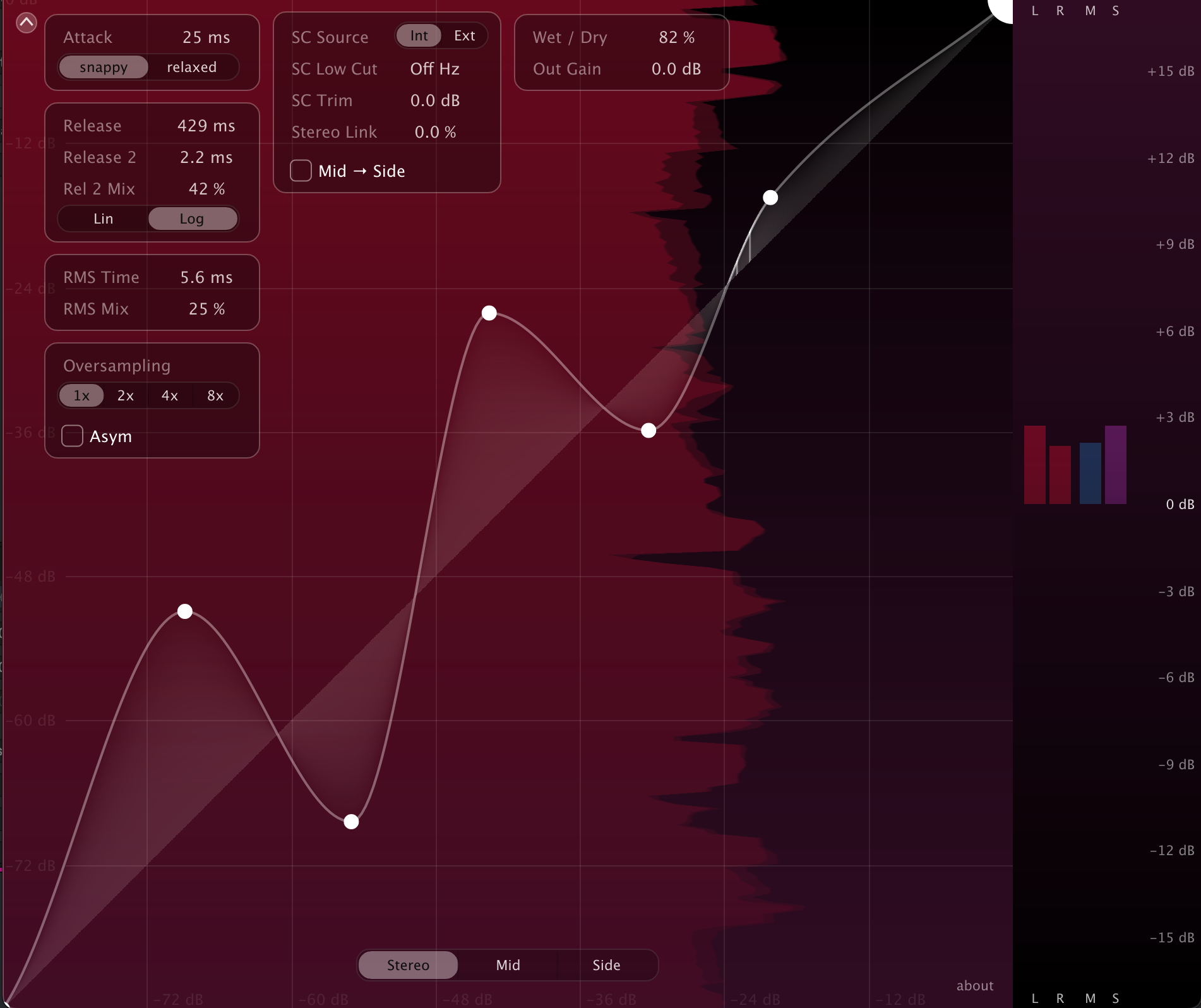
Curve-based control
At the core of DynCurve is a freely editable transfer curve: input level on the X-axis, output level on the Y-axis. Instead of working around fixed thresholds, ratios and knees, you simply shape how the signal responds across its entire dynamic range. Compression, expansion and gain shaping can live on the same curve — from subtle control to extreme movement.
- Compression, expansion and gating on one continuous curve
- From soft leveling to extreme compression and creative waveshaping
- Quick segment controls for spline and linear curve shapes
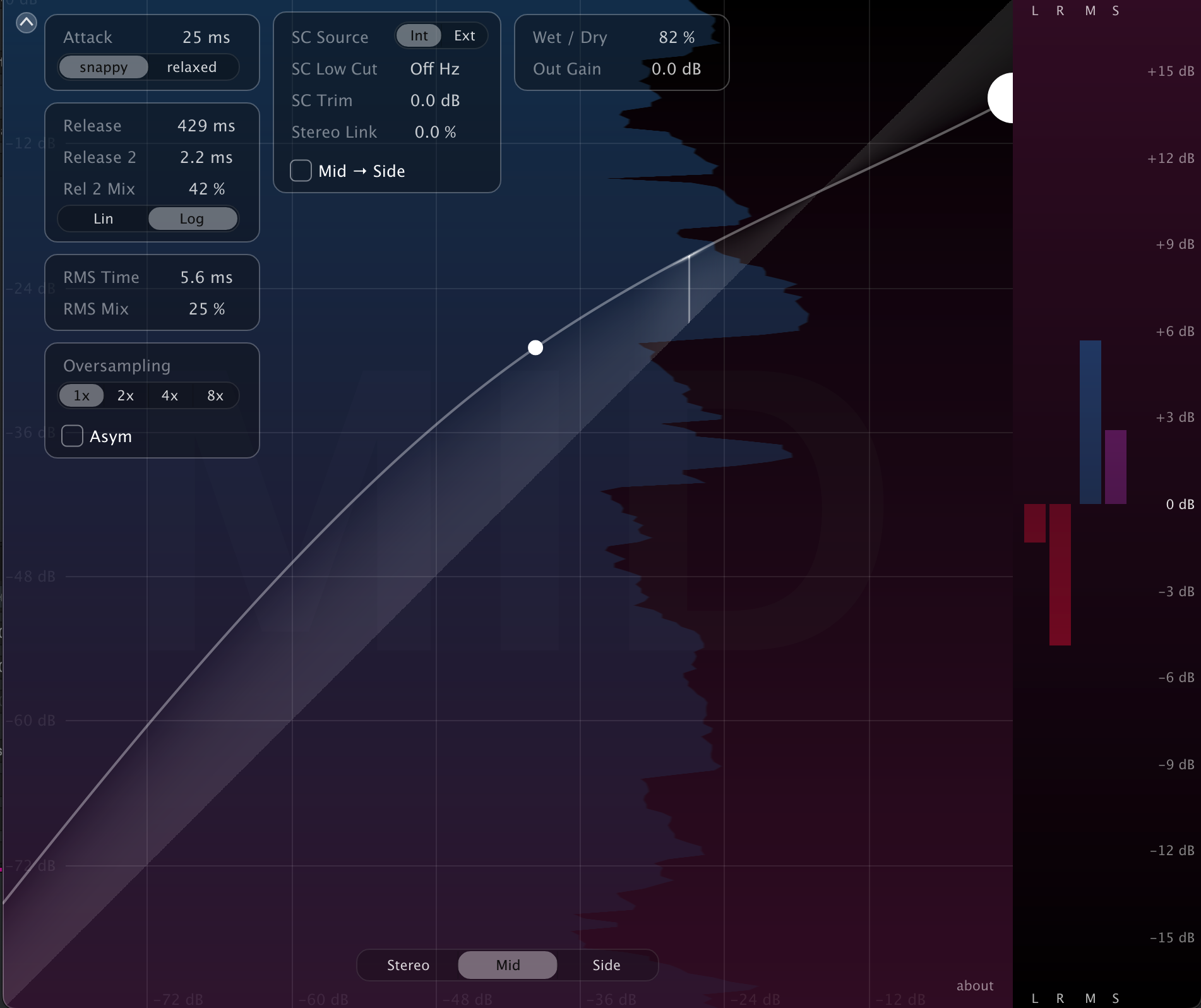
Three perspectives, one system
DynCurve gives you instant access to Stereo, Mid and Side processing, each with its own independent transfer curve. Shape the center and the sides differently, control width through dynamics, and move between perspectives without duplicating plugins or breaking your workflow.
- Independent curves for Stereo, Mid and Side
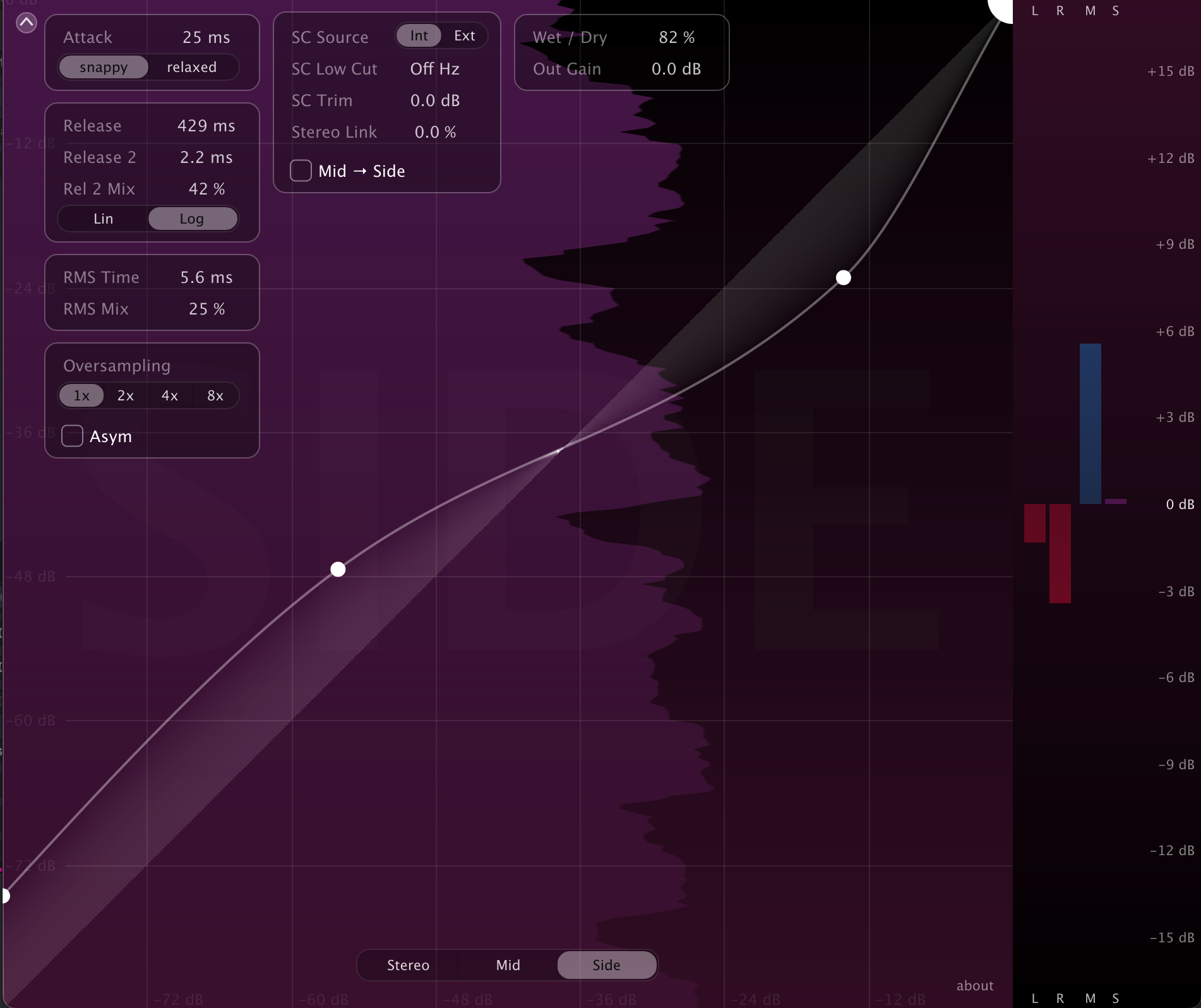
What you see is what you shape
DynCurve visualizes the control signal that drives the dynamics, showing how the incoming audio is interpreted through attack, release, RMS detection and sidechain filtering.
Because the display follows the same signal that is mapped through the transfer curve, every adjustment is reflected instantly — making it easy to place the curve exactly where the dynamic movement happens.
A Stereo-Based Approach to Multichannel Dynamics
Instead of treating multichannel audio as a collection of unrelated channels, DynCurve interprets every format as a single, coherent stereo soundstage. This soundstage remains consistent regardless of channel count or speaker layout.
Based on this unified soundstage, DynCurve groups stereo channel pairs into a shared spatial image and derives a global Mid and Side signal from it. This allows Mid/Side dynamics processing to be applied across surround and immersive buses—something traditional multichannel processors cannot do.
In practice, you can for example use the Side curve to dynamically control the width across an entire surround or immersive bus.
- Multichannel editing on a stereo stage
- Mid/Side dynamics on surround channels
Manual
Deep Dive into the parameters.
Envelope Follower
Every dynamic response starts with how DynCurve interprets the incoming signal over time.
An audio signal is not a stable value; it is a constantly changing waveform, crossing zero, reversing direction and producing peaks every moment.
What we call “level” is always an interpretation over time. Attack and release times, often understood as a compressor’s reaction speed, actually define how the signal is measured in the first place.
By deciding how quickly the envelope follows the waveform, you shape what is being detected: instantaneous peaks, smoothed movement, or long-term energy.
DynCurve makes this relationship explicit and visible. With no fixed thresholds or ratios in the way, the envelope follower becomes exactly what it is: an interpretation of a signal’s dynamic response.
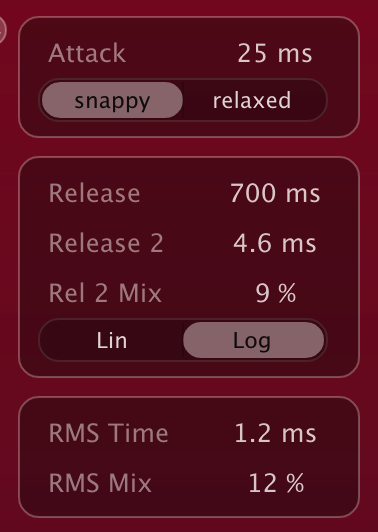
Attack Attack Time & Character
The Attack parameter sets how quickly the envelope follower responds to rising signal levels. In addition to the attack time, DynCurve lets you define the character of the attack using two modes:
Snappy
Snappy emphasizes the initial rise of the envelope. The follower accelerates more quickly at the beginning of the attack phase, resulting in a sharper, more immediate response.
- pronounced transients
- punchy drums and percussion
- impact & definition
Relaxed
Relaxed behaves like a classic, smooth attack response. The envelope rises more evenly over time, producing a natural and familiar compression feel.
- vocals
- sustained instruments
- transparent leveling
Release Dual Release + Curve Mode
The Release Parameter defines how quickly the envelope follower responds to falling signal levels. DynCurve features a dual release architecture, allowing two independent release times to work together. By blending between them, DynCurve allows fast local recovery without sacrificing long-term smoothness.
- responsive without sounding nervous
- dense without pumping
- natural without losing energy
Release Curve: Linear / Logarithmic
Both modes use the same envelope structure but differ in how the return to zero is shaped over time.
Logarithmic (Log)
The release is calculated in the logarithmic (dB) domain. This produces a smooth, natural decay that closely follows perceived loudness changes.
- more musical
- more transparent
- great for general-purpose compression
Linear (Lin)
The release is calculated in the linear value domain. This can result in a more direct and sometimes punchier response, especially with shorter release times.
- rhythmic material
- transient-heavy signals
- immediacy & density
RMS Detection Energy-Based Envelope Control
In addition to peak detection, DynCurve offers RMS-based envelope detection, which follows the energy of the signal rather than its instantaneous peaks.
RMS (Root Mean Square) reflects perceived loudness over a short time window, making it especially useful for musical and organic dynamic control.
RMS Time
Defines how quickly the RMS detector follows changes in signal energy.
- short times: quicker response, more transient detail
- long times: smoother, averaged movement
RMS Mix
Blends the RMS-based envelope into the main control signal.
- low values: subtle stabilization
- high values: responds more to energy than peaks
This is particularly effective for:
- vocals
- bass
- pads & sustained sounds
- bus compression
Many classic compressors use RMS detection for a smooth and musical behavior. DynCurve allows you to blend this behavior continuously instead of committing to a fixed detection mode.
Sidechain
Conditioning the Control Signal
Once the signal has been measured by the envelope follower, it becomes the control signal that drives the dynamics.
This sidechain signal runs in parallel to the audio path. Before it is mapped through the transfer curve and translated into gain change, it can be further shaped and conditioned here.
These controls do not affect the audio directly – they modify the measured signal itself, defining how the detected level influences the dynamic response.
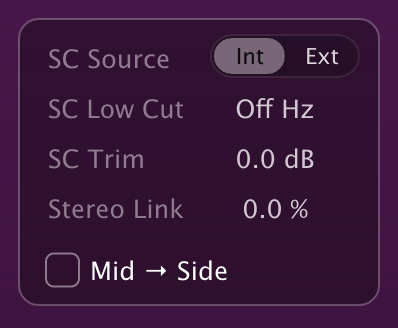
SC Source Choosing the Measurement Input
The Sidechain Source determines which signal is used as the basis for level measurement.
- Internal uses the plugin’s input signal
- External allows a separate signal to feed the measurement path
SC Low Cut Reducing low-frequency dominance
The Sidechain Low Cut applies a high-pass filter to the sidechain signal.
This reduces the influence of low frequencies on the measurement, helping to avoid excessive gain movement caused by bass-heavy content. It is especially useful for mix bus processing, drums and full-range material.
SC Trim Find the perfect operating range
Sidechain Trim adjusts the level of the sidechain signal.
This allows you to:
- move the measured signal into a useful operating range
- increase or reduce the overall intensity of the dynamic response
- drive an existing transfer curve harder or more gently
All without changing the curve itself.
Stereo Link Channel interaction at the control stage
Stereo Link defines how the sidechain envelopes of the left and right channels interact.
- At 0%, each channel is measured independently
- At 100%, both channels share the same control signal
Intermediate values allow a balance between stereo stability and independent channel behavior.
Mid → Side Redirecting the control path
Mid to Side reroutes the sidechain for the Side domain so that it is driven by the Mid signal.
This allows the dynamics of the Side signal to respond to the level of the center content, enabling unconventional spatial effects and creative control scenarios.
It is particularly useful when working with mono or external sidechains that would otherwise only affect the Mid domain.
This mode intentionally breaks conventional routing assumptions and is designed for creative exploration.
Center / LFE → SC Surround / Immersive routing options
These options determine whether the Center and LFE channels are included in the plugin’s internal sidechain (control signal) used for level detection. They appear only when the plugin is inserted on a multichannel track or bus. When enabled, the channel is included in the sidechain; when disabled, it is excluded from the detector signal. Why that can be useful:
- Center channel: Often carries dialogue. Excluding it prevents dialogue peaks from triggering dynamics processing on the entire mix.
- LFE channel: May contain strong low-frequency peaks. Excluding it avoids excessive triggering caused by sub-bass energy.
This setting affects only the control signal. The resulting gain change (dynamics processing) is still applied to these channels; they are simply excluded from influencing the detector.
Advanced Settings
These settings intentionally influence how the signal is treated internally, enabling cleaner results at extreme settings or introducing controlled nonlinearity for creative purposes.
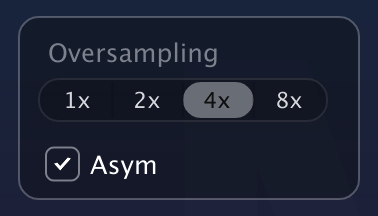
Oversampling Reducing aliasing at fast response times
Dynamic processing with very fast attack or release times can introduce additional high-frequency content. In a digital system, frequencies above the Nyquist limit cannot be represented correctly and may fold back into the audible range as aliasing artifacts.
Oversampling reduces this effect by processing the signal at a higher internal sample rate, allowing these frequencies to be handled more accurately before being converted back to the original rate.
- cleaner transients
- smoother high-frequency response
- reduced harshness at aggressive settings
Oversampling is especially beneficial when using fast envelope settings or sharp transfer curves.
Higher oversampling rates require additional CPU resources.
Asym Mode Asymmetric envelope processing
When Asym Mode is enabled, DynCurve uses separate envelope followers for the positive and negative halves of the waveform. This breaks the usual symmetry of dynamic processing and introduces subtle nonlinear behavior.
Depending on the settings, this can result in anything from gentle coloration to more pronounced distortion-like effects. The behavior is comparable to certain characteristics of analog saturation, where positive and negative signal excursions are treated differently.
However, DynCurve retains full control over timing and response, keeping the behavior predictable and adjustable. Asym Mode is intended as a creative tool and can be used deliberately to add character, density or experimental edge to a signal.
Asym Mode can introduce harmonic distortion. Use intentionally and with awareness of its sonic impact.
Output
Final Level & Signal Balance
The output stage defines how the processed signal leaves DynCurve. Here, overall intensity can be refined and final level adjusted without altering the internal dynamic behavior.
Auto Gain Estimated Gain Compensation
When enabled, Auto Gain estimates a compensation gain based on the shape of the transfer curve. This helps balance level changes introduced by the dynamics processing.
The estimation is calculated from the curve itself and does not measure the incoming audio signal. Because of this, Auto Gain provides a quick level approximation rather than an exact loudness or level match.
This can be helpful when dialing in typical compression settings, as it roughly compensates for gain reduction or upward gain changes and makes it easier to compare processed and unprocessed signals.
With very extreme settings or unusual transfer curves, the estimation may become less accurate, so manual adjustment or measured matching may still be desirable.
The estimated compensation gain is displayed in a small label next to the control. Auto Gain is applied before the Wet / Dry mix in the signal path.
Level Match Measured Input / Output Matching
Level Match continuously compares the input and output level of DynCurve and displays the current difference between them. This makes it easier to judge the actual effect of the processing without being distracted by level changes.
Two independent delta readouts are available:
- Delta TP shows the difference in True Peak level between input and output
- Delta RMS shows the difference in RMS energy between input and output
Each readout has its own Match button. Pressing Match adjusts the Output Gain so that the selected input and output measurement are aligned at that moment.
True Peak matching is useful when you want to compare peak level and avoid being misled by louder transients. RMS matching is useful when you want to compare the overall energy or perceived density of the processed signal.
Unlike Auto Gain, Level Match is based on the measured audio signal rather than the transfer curve alone. This makes it a practical fine-tuning tool after shaping the dynamics.
In practice, Auto Gain can be used as a fast starting point, while Level Match can then refine the final Output Gain using either True Peak or RMS measurement.
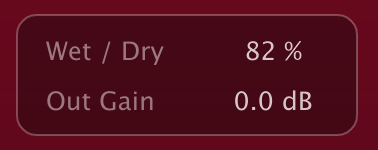
Wet / Dry Mix Balancing Processed and Original Signal
The Wet / Dry Mix blends the processed signal with the original, unprocessed signal. Adding dry signal first reduces the overall intensity of the dynamic processing.
The effect of the transfer curve becomes less pronounced, while its general shape and behavior remain intact. This reduction is not uniform: larger gain changes are smoothed more strongly than smaller ones.
In practice, this creates a more controlled and natural response:
- strong peaks and deep gain reductions are restrained
- fine dynamic detail is preserved
Wet / Dry Mix is therefore an effective way to refine complex curve shapes, reduce excessive movement and dial in the exact musical impact of the processing.
Output Gain Final Level Compensation
Output Gain adjusts the final signal level at the end of the processing chain.
It is primarily used to compensate for level changes introduced by the dynamics and to match the processed signal to the original level.
Output Gain can be set manually, estimated with Auto Gain, or adjusted automatically by the Level Match buttons using the current True Peak or RMS delta measurement.
Metering & Interface
Visual Feedback and Focused Editing
DynCurve is designed to make dynamic behavior visible and easy to navigate, even with complex curve shapes and multi-domain processing.
Gain Change Meter
Instead of showing traditional gain reduction only, DynCurve displays gain change in both directions. Because the transfer curve can apply attenuation and amplification at different levels, the meter reflects exactly where and how the signal is being modified.
Separate meters are shown for:
- Left
- Right
- Mid
- Side
Each meter represents the real-time gain change of its respective domain. The meter range can be adjusted by clicking and dragging directly on the meter, allowing you to focus on subtle movement or larger dynamic changes as needed.
Zoomable Curve and Envelope Display
The curve editor and the envelope history in the background can be zoomed interactively. Click and drag within the editor to adjust the visible range, enabling precise work at both fine and extreme settings.
This ensures that curve editing always remains clear and controllable, regardless of signal level or dynamic range.
Curve Ruler
Right-click anywhere in the curve editor to reveal the Curve Ruler. It projects the selected point onto the transfer curve and displays the corresponding input level, output level and gain difference.
This makes detailed curve editing more transparent, especially when you want to place compression, expansion or gain shaping at exact level ranges.
Magnetic Diagonal
Hold the Shift key while moving a curve point to snap it to the diagonal that marks the 1:1 ratio.
Segment Shape Control
Curve segments are smoothly interpolated by default. When hovering near a segment, DynCurve shows a small inline control that lets you switch the segment between spline and linear behavior directly in the editor.
This allows precise control over the character of transitions within the transfer function, while keeping the editing workflow visual and immediate.
Domain Navigation
The domain selector at the bottom of the interface provides direct access to the Stereo, Mid and Side curves.
Switching domains instantly brings the corresponding transfer curve into focus, allowing fast navigation between different signal paths without leaving the editor.

FAQ
Is there a Trial version?
Yes – just download the plugin and activate your 14-day trial. No accounts, no ads.